Wednesday, June 20, 2012

TablePlay

Our latest game, TablePlay, has been released on the AppStore


You can watch the promotional video here:


The game features 3 different minigames, suitable for kids of all ages:

  1. Jigsaw puzzle game
  2. Memory-like game
  3. Paint application


It also features a way for parents to limit the time their kids spend with the game:


Monday, November 7, 2011

Renaming Xcode Developer folder

When installing a new version of Xcode, you may want to keep your existing installation as well. One way to do that is to first rename your current Developer folder before installing the new version.

To rename your Developer folder, open the terminal and type the following:

sudo mv /Developer /Developer4.0

In the case above, I rename my current install (4.0) to Developer4.0. I then install Xcode 4.2 at the default Developer folder.

Thursday, November 3, 2011

PrimeQuiz on AppStore

We released our first game for the iPad today. It's a quiz-game, only in Swedish at the moment. The game is great fun and I suggest you pick up a copy at: http://itunes.apple.com/se/app/primequiz/id465316270?mt=8


Monday, October 31, 2011

Upgrading to SVN 1.7


We upgraded our Tortoise SVN clients from version 1.6.x to 1.7.x. SVN 1.7 uses a Centralized Metadata Storage, which means that instead of storing a .svn-directory inside every other directory in your working copy it stores 1 centralized .svn-directory in the root of your working copy. This means far less extra directories and files scattered all over your hard drive. For our project we got the follwing numbers:

1.6.x:
  • Size on disc: 3,639 Mb
  • Files: 20,199
  • Folders: 7,542
1.7.x:
  • Size on disc: 3,559Mb
  • Files: 16,178
  • Folders: 1,556
Conclusion:
  • Size on disc: 97.8% of 1.6 version
  • Files: 80% of 1.6 version
  • Folders: 20% of 1.6 version
Diff:
  • 2.2% less space
  • 20% less files
  • 80% less folders

Tuesday, October 4, 2011

SVN relocate on Mac OS

This shows you how to relocate your svn directory to point at a new server ip address on MacOS. In the following example I have used the following parameters:

  • Computer user: Jerry
  • Directory where I have my local copy of the repository checked out: Jerry/MyProject
  • SVN user: svnuser
  • SVN psw: svnpsw
  • New IP of my server: 89.191.11.14

1. Open the Terminal
2. Navigate to the directory where you have your version checked out
3. Type "svn info".

  • If you get a message like "svn: '.' is not a working copy", then you are in a directory that is not under version control. I.e. you are in the wrong directory.


4. See where it says "URL ..." ? This is where your current directory is currently linked to. You want to use that URL in the next step. In my case it says : URL: svn://89.210.74.91/myproject/trunk
5. Write "svn switch --username svnuser --password svnpsw --relocate svn://89.210.74.91/myproject/trunk svn://89.191.11.14/myproject/trunk"

Thursday, September 29, 2011

Xcode 4 - warning: no rule to process file

A while ago I posted a note about how to resolve the warning: no rule to process file warning in Xcode. That post showed you how to solve the problem in Xcode 3. The same warning can be resolved in Xcode 4 by following these steps:


1) Select Project Navigator
2) Select your project
3) Select your target


4) Select Build Phases
5) Move the files you don't want the compiler to process from Compile Sources to Copy Bundle Resources

Thursday, April 14, 2011

Xcode: Converting to execution character set: Illegal byte sequence

If you are working on multiple platforms you may run into Unicode trouble if you do not save your files correctly.
This test string worked just fine in VS2010:

wchar_t* wstr = L"ÅäöJerry";

But gave the following compiler error in Xcode:


This error happens because the file was saved in a non-Xcode compatible unicode format.
If you intend to use Unicode characters in your source file, make sure the file is in a format Xcode supports. I resaved the file in VS2010 as UTF8, which solved the problem.

Monday, March 14, 2011

Xcode - warning: no rule to process file

Update: This post covers how you solve a problem in Xcode 3. If you want to know how it's done in Xcode 4, see here instead

I added 2 new files to my IPhone project today. These are two text files (two glsl files) and they should only be included in my main bundle to be accessed at run time.

However, when I build the project I get the following warnings:

warning: no rule to process file '$(PROJECT_DIR)/Content/Shaders/DistanceField.fsh' of type sourcecode.glsl for architecture i386
warning: no rule to process file '$(PROJECT_DIR)/Content/Shaders/DistanceField.vsh' of type sourcecode.glsl for architecture i386


It seems Xcode are trying to process my files during build. Why is that? I don't want that. I just want the files to be included in my bundle. After doing some detective work I found what the problem was:


Xcode automatically added my files into the "Compile Sources" group, for some reason I don't understand. After moving the files over to "Copy Bundle Resources" everything worked fine

Wednesday, March 2, 2011

POWERVR SGX Optimized Render Order

Basic reference of my understandings of how to batch geometry on the POWERVR SGX chip.


Render Target 1

1. Opaque surfaces

No win to sort by depth.

  1. Shader
  2. Texture & Uniforms
  3. Other states

2. Surfaces using discard (Old Alpha Test)

Same sorting as Opaque Surfaces

3. Transparent surfaces

Sort by depth if necessary
Same sorting as Opaque Surfaces

Render Target 2

Tuesday, March 1, 2011

From Visual Studio to Xcode #2

Consider the following code:

int Test()

{

int a=10;

int c;

// Bug. User meant “=” but unfortunately wrote “==”

c==a;

return c;

}

This piece of code is obviously faulty. c is never assigned the value of a. c is actually never assigned any value.

When we compile this in VS 2008 we get the following warnings:

  • warning C4553: '==' : operator has no effect; did you intend '=' ?
  • warning C4700: uninitialized local variable 'c' used

In Xcode, we get no warnings at all. I just spent 30 minutes tracing this kind of bug in my code, in Xcode. I know I have made the mistake of replacing “=” with “==” several times in the past, but usually VS warns me in these occations. Xcode does not.

Friday, February 25, 2011

OpenGL ES Shading Language

Coming from an OpenGL 1.5 + Nvidia Cg environment there are some noticable differences when migrating over to OpenGL ES 2.0. This post is like a cheat sheet for myself and others to use as a quick reference to look up some major keypoints of the Opengl ES Shading Language.

Precision & range of variables

The OpenGL ES Shading Language, used in e.g. IPhone OpenGL ES 2.0, lets you decide upon the range and precision used to represent integer or floating point variables.

Precision qualifiers:

  • highp (e.g. highp mat4 myMatrix)
  • mediump (e.g. varying mediump vec2 myTexCoord)
  • lowp (e.g. lowp float myColor)

Minimum ranges and precision

Bits FP Range FP Precision Int Range
highp 16 (-262, 262) Relative 2-16 (-216, 216)
mediump 10 (-214, 214) Relative 2-10 (-210, 210)
lowp 8 (-2, 2) Absolute 2-8 (-28, 28)

default vertex shader precisions

  • precision highp float
  • precision highp int
  • precision lowp sampler2D
  • precision lowp samplerCube

default FRAGMENT shader precisions

  • precision mediump int
  • precision lowp sampler2D
  • precision lowp samplerCube

Notice the fragment shader is missing a default precision for float. This means you must include precision qualifier for floats.

Built-in Variables

Vertex shader

Type Precision
gl_Position vec4 highp
gl_PointSize float mediump

Fragment shader

Type Precision
gl_FragCoord vec4 mediump
gl_FrontFacing bool
gl_FragColor vec4 mediump
gl_FragData[gl_MaxDrawBuffers] vec4 mediump
gl_PointCoord vec2 mediump

Thursday, February 24, 2011

IPhone Development Reference Post

  3G 3GS 4 IPad
Resolution 480x320 480x320 960x640 1024x768
Ratio (*) 3:2 (1.5) 3:2 (1.5) 3:2 (1.5) 4:3 (1.33)
OpenGL ES 1.1 2.0 2.0 2.0

(*) The bigger the ratio the more “widescreen” the display is. Eg: 16:9 = 1.78, 16:10 = 1.6

Wednesday, February 16, 2011

Doom Classic Iphone Source Code

The Doom source code for IPhone can be downloaded from this site http://www.idsoftware.com/doom-classic/.

At the bottom of that page there is a broken link to the actual zip file: ftp://www.idsoftware.com/idstuff/doom/doomclassic_iphone_v1.0_source.zip

I could not find a mirror site which hosted this file, but after a closer look at the link I was able to find the source at the correct link here:
ftp://ftp.idsoftware.com/idstuff/doom/doomclassic_iphone_v1.0_source.zip

Friday, February 11, 2011

From Visual Studio to XCode – Lessons Learned #1

In Visual Studio I use HOME/END to jump back and forth on rows, extensively. Using those keys in XCode results in the cursor jumping to the beginning/end of the document instead of the current row. There is a simple way to fix this:

Open:

XCode->Preferences->Key Bindings->Text Key Bindings

xcode

  1. First, duplicate “Xcode Default” Key Binding Set, by clicking on Duplicate…
  2. Name your new Key Binding Set
  3. Assign “Home” to “Move to Beginning of Line”
  4. Assign “End” to “Move to End of Line”
  5. Remove the previous bindings for Home/End from “Scroll to Beginning of Document/Scroll to End of Document” (if necessary. Xcode might remove these automatically).

Friday, January 28, 2011

Finding the default.log file on SimWay products

During every run of a SimWay product you get a log file written to disc. This file contains collected information about your system and possible warnings/errors.

The file can be located here on Win7 systems:
c:\ProgramData\Company\Product\default.log

So, for Focaltron's GA Sim the log file is located:
c:\ProgramData\Focaltron\GA Sim\default.log

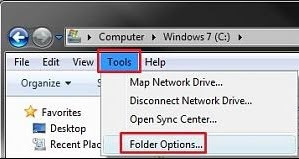
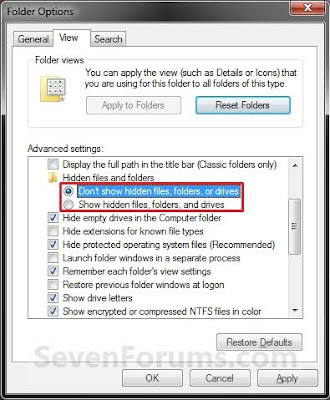
The directory c:\ProgramData is hidden by default. If you don't see it you must choose to show hidden folders:

1) Open a Windows Explorer window
2) Click on the Tools (press ALT once to show the menu) menu bar item


3) Click on Folder Options
4) Select Show hidden files, folders and drives.

5) Click on Apply

Thursday, November 12, 2009

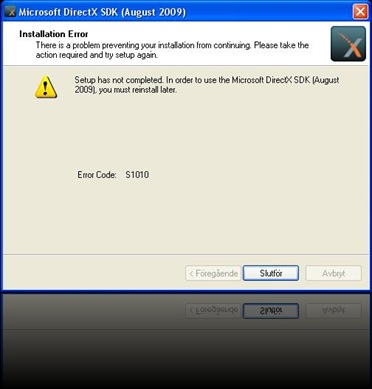
Installing DirectX SDK – Error S1010

dxsdk_error

Recently I needed to setup a new computer at work. I will use this new computer for development. The computer already had Windows XP SP3 installed as the operating system. The software I needed to install for development purposes were the following:

  • .NET Framework 3.5 SP1
  • Visual Studio 2008
  • DirectX SDK (Aug 2009)

Every one of those installations gave me trouble. None of the above installed without hassle. I managed to get .NET Framework and Visual Studio 2008 installed after numerous tries, but DXSDK just wouldn’t install.

I couldn’t find a solution to why the SDK wouldn’t install. I tried a  few different things without luck. The SDK installation exe file was downloaded with IE8. I then tried, as a last resort, and downloaded the file with Firefox instead. And guess what. The SDK installed without a problem! How strange is that? I have verified by downloading the SDK again several times with IE8 on that computer and that downloaded file just doesn’t work. The files are identical in byte size as the picture below shows (The text is in Swedish):

dxsdk_size

Both file sizes are 580,228,040 bytes.

(The only noticeable difference between the files is the Security Block showing up beneath Attributes. However, I removed the Security Blockage and tried installing it without any success).

Wednesday, September 9, 2009

Visual Studio Watch Window Tip #2


Did you know the Watch Window can not only display the values of your variables, but also execute code? This is a very handy feature which allows you to call functions in your code directly from the Watch Window. In the example above I call the sizeof operator to check the size of my variable 'test', and I also call my own function.

Friday, August 21, 2009

Visual Studio Watch Window Tip #1

A very usefull debugging tip that I use a lot is the ability to watch dynamically allocated arrays. Look at the code above. An array is allocated dynamically and the debugger most often can't display the content of the array in the "watch window" since it often can't determine the size of the array. The array in the watch window will look like this:

The debugger shows only the first entry in the array. Usually when you want to watch a dynamically allocated array you "kind of" know it's size. In the above example I know the size of the array is 10. I can simply tell Visual Studio how many elements to display to get a proper view of the content of the array like this:

All you do is add the size of the array after the variable name, separated by a comma ",". Now you can watch the contents of any array.

Saturday, August 8, 2009

id Tech 5 Challenges

Course notes from SIGGRAPH 2009: Beyond Programmable Shading are available. I enjoyed reading the slides from J.M.P. van Waveren, id software. He writes a bit about the virtual texturing in Id Tech 5 and also about their approach to distribute the engine over multiple cores. He does not describe anyting in great detail. It's more like a coarse overview with some nice screenshots.

Friday, July 24, 2009

Microsoft BizSpark


We are since a couple of weeks back a Microsoft BizSpark Member. This is a great opportunity for us (and other small companies) to be able to save a great deal of money on software licenses. We are currently running Visual Studio 2008 & Office 2007 in the office and the licenses cost us nothing. Another great aspect of this membership is the ability it gives us to test various softwares without any restrictions whatsoever.